Mastering Text in Studio: A Complete Guide to the Text Tool
Every visual project eventually needs words. Whether you are adding a headline to a social media graphic, labeling a diagram in an educational infographic, or crafting a logo variation for a client presentation, the way you handle text determines whether your work looks professional or amateurish. The text tool in Studio is often the first feature new users explore, yet it also contains depths that experienced creators continue to discover. Understanding how to use the text tool in Studio effectively transforms your workflow from simply placing words on a canvas to designing with typography as a core visual element.
Why the Text Tool Matters Beyond Simply Typing
Many creators approach text as an afterthought—they design the visual elements first and then drop in words at the end. This approach overlooks the fact that text carries both semantic meaning and visual weight. The text tool in Studio is not merely a typing interface; it is a typographic engine that allows you to treat letters as shapes, lines as compositional structures, and paragraphs as textured blocks. When you learn how to use the text tool in Studio with intention, you begin to see every font choice, every kerning adjustment, and every alignment decision as a deliberate part of your overall design language.
Professionals in marketing, education, publishing, and product design all rely on precise text handling. A business owner creating a flyer needs clear hierarchy. An educator preparing a worksheet needs legibility and structure. A hobbyist making a birthday invitation needs personality and flair. The text tool serves all these needs through a combination of straightforward controls and nuanced settings that reward deeper exploration.
Getting Oriented with the Text Tool Interface
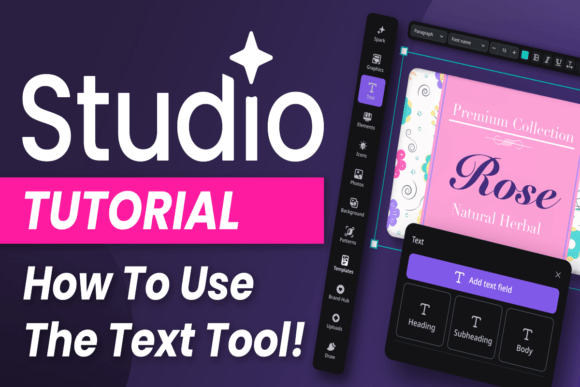
Before adjusting any property, it helps to understand what the text tool in Studio offers at a glance. When you select the text tool from the toolbar, your cursor changes to indicate you are about to create a text layer. Clicking anywhere on the canvas creates a point text layer—ideal for short headlines or standalone words. Clicking and dragging creates a paragraph text box, which automatically wraps text within the defined boundaries. This distinction is fundamental because it affects how your text behaves when you edit or resize it later.
The properties panel that appears when a text layer is selected typically contains several grouped sections. Font family and style controls sit at the top, followed by size, leading, tracking, and kerning adjustments. Below these, you will find alignment options, paragraph spacing, and sometimes advanced features like baseline shift or text on a path. Understanding where each control lives and what it does is the first step toward efficient editing. Many users spend unnecessary time hunting for settings, but once you internalize the layout of the text tool, you can adjust properties in seconds.
Choosing and Pairing Fonts with Purpose
One of the most common questions around how to use the text tool in Studio involves font selection. The tool gives you access to system fonts, cloud fonts, and any custom fonts you have installed. The key is not to use every font you own but to choose fonts that serve your message. A sans-serif font like Inter or Roboto works well for body text in digital contexts because of its readability at small sizes. A serif font like Playfair Display or Lora adds elegance to headlines and print-oriented projects. Display fonts and scripts should be reserved for accent text or short phrases where their personality can shine without overwhelming the reader.
Pairing fonts requires thinking about contrast. A common and effective strategy is to use one serif and one sans-serif, or one neutral and one expressive font. The text tool makes it easy to apply different fonts to different text layers, so you can experiment with combinations without committing permanently. Look for fonts that share similar proportions or x-heights, as this creates visual harmony even when the styles differ. For example, pairing a geometric sans-serif with a humanist serif often works because both have consistent stroke contrast and balanced letterforms.
Mastering Typographic Hierarchy Through Size and Weight
Typographic hierarchy guides the reader through your content. Without hierarchy, all text appears equally important, and the reader has no signal about where to start or what to focus on. The text tool in Studio gives you direct control over hierarchy through size, weight, and color. A headline might be set at 48 pixels in a bold weight, while a subhead sits at 24 pixels in a medium weight, and body copy runs at 16 pixels in a regular weight. This three-level structure is the simplest effective hierarchy, though you can expand it to four or five levels for more complex documents.
Weight variation within the same font family is one of the cleanest ways to establish hierarchy because it maintains consistency while creating contrast. If your font family includes thin, regular, medium, bold, and black weights, you have a full toolkit for hierarchy without ever switching fonts. The text tool allows you to toggle between these weights instantly from the style dropdown, making iterative adjustments fast. You can also use italic or uppercase as secondary differentiators, though these should be used sparingly to preserve their impact.
Spacing and Alignment: The Subtle Art of Readability
Spacing is where many beginner designers reveal their inexperience. Too little space between lines makes text feel cramped and difficult to read. Too much space makes it feel disconnected and sparse. The text tool in Studio provides leading (line spacing) controls that let you set the vertical distance between lines of text. A general rule of thumb is to set leading at 120 to 150 percent of the font size. For body text, this usually means a leading value between 1.4 and 1.6 times the size, though longer reading passages may benefit from even more generous spacing.
Tracking, or letter spacing, adjusts the space uniformly across all characters in a selection. Tight tracking works well for all-caps headlines because it creates a solid, monolithic block. Loose tracking can give a sense of air and elegance, but it should be used cautiously in body text where it can slow reading. Kerning, by contrast, adjusts the space between specific pairs of letters. Most fonts include built-in kerning tables, but the text tool in Studio often allows manual kerning adjustments for precise control over logos, headings, or any text where letter relationships matter visually.
Alignment choices also affect readability and tone. Left-aligned text is the most readable for languages that read left to right because it creates a consistent starting point for each line. Center alignment works well for short blocks of text like quotes or titles, but it forces the reader to find a new starting point for each line, which slows processing. Right alignment and justified alignment have specific use cases—right alignment for captions or side notes, and justified alignment for columns of text where a clean edge is desired. The text tool makes switching between these alignments instantaneous, so you can test each option to see how it affects the visual rhythm of your layout.
Working with Text on Paths and Shapes
Beyond standard horizontal and vertical text, the text tool in Studio often includes the ability to attach text to a path. This feature is invaluable for creating curved typography in logos, circular labels, or decorative text that follows an organic shape. To use this, you first draw a path using a pen or shape tool, then select the text tool and click on the path. The text will follow the contour of the path, and you can adjust the start and end points to control exactly where the text sits.
Text on a path opens up creative possibilities that flat text cannot achieve. A badge design, for example, often features text curving along the top and bottom of a circle. A map annotation might follow a winding road. A poster title might arc dramatically to echo the motion in a photograph. The key to using this feature well is to ensure the path itself is smooth and intentional, because the text will inherit every bump and angle. If the path is jagged, the text will look jagged too. Taking the time to refine your path before applying text saves significant cleanup later.
Layering Text with Other Elements
Text rarely exists alone. In most projects, text sits on top of backgrounds, near images, alongside shapes, or within masks. Learning how to use the text tool in Studio effectively means understanding how text layers interact with other layer types. The layer stack determines which elements appear in front, and you can reorder text layers by dragging them up or down in the layers panel. Drop shadows, outlines, and background fills applied to text layers help them stand out against busy backgrounds.
One technique that professional designers use frequently is placing text inside a shape. The text tool can often be combined with a shape layer to create a masked text effect, where the text is only visible where the shape exists. This is useful for creating typographic logos where the text fills the contour of a symbol or icon. Similarly, using a semi-transparent background behind text ensures readability without completely blocking the underlying image. These layering techniques turn the text tool from a simple typing interface into a compositional instrument.
Real-World Workflow: From Blank Canvas to Finished Graphic
To see how the text tool in Studio functions in a realistic context, consider the workflow of creating a promotional social media graphic. You start with a square canvas, perhaps 1080 by 1080 pixels. After placing a background image and a subtle overlay, you select the text tool and click near the top of the canvas to create a headline. You type the main message, select a bold sans-serif font, and set the size to 72 pixels. The text is white, but it does not stand out enough against the bright area of the background, so you add a dark drop shadow with low opacity and a small offset.
Below the headline, you create a paragraph text box for the supporting copy. You drag from left to right to define the box width, then paste your body text. You set the font to a readable serif at 20 pixels with leading at 30 pixels. The paragraph is left-aligned to maintain readability. At the bottom, you add a call-to-action in a medium weight sans-serif, slightly smaller than the headline but larger than the body text, creating a clear hierarchy. You adjust the tracking on the call-to-action to be slightly looser, giving it a button-like feel. The entire process takes a few minutes, but the deliberate choices made through the text tool determine whether the graphic communicates effectively or gets scrolled past.
Considerations for Different Output Formats
The text tool in Studio behaves differently depending on whether your final output is digital or print. For digital projects, you need to consider screen resolution, readability on mobile devices, and how text will appear on different browsers or platforms. Fonts that are not standard may need to be embedded or converted to outlines to prevent substitution. For print projects, you need to ensure that fonts are embedded in the PDF or that text is converted to outlines to avoid missing font errors at the printer. The text tool settings for size and spacing also translate differently to physical media—what looks spacious on screen may feel too loose on paper, and vice versa.
Another consideration is accessibility. Text that is too small, has insufficient color contrast, or uses decorative fonts for body copy can exclude readers with visual impairments. The text tool in Studio allows you to test different sizes and colors, but you as the designer must apply accessibility standards consciously. Using a minimum body text size of 16 pixels for digital, ensuring contrast ratios of at least 4.5:1 for normal text, and avoiding all-caps for long passages are practical guidelines that make your work more inclusive.
Pushing Beyond Defaults: Custom Typography and Effects
Once you are comfortable with the core functionality of the text tool, you can explore custom typography effects that elevate your work. Variable fonts, for example, allow you to adjust weight, width, slant, and other axes continuously rather than choosing from fixed styles. If the text tool in Studio supports variable fonts, you can fine-tune the exact weight that works for your design, rather than settling for whatever bold or semibold offers. This granularity is especially valuable for branding projects where a specific visual identity requires consistency across all materials.
Text effects such as gradients, patterns, and textures applied to text layers turn letterforms into graphic elements. A gradient applied to a headline can match the color palette of the background image, creating a cohesive look. A subtle noise texture applied to text can give it a vintage or gritty feel. The text tool usually works within the broader layer effects system, so any effect you can apply to a shape—shadows, glows, bevels, strokes—can also apply to text. The limitation to watch for is readability: effects should enhance the text, not obscure it.
Efficiency Tips for Frequent Users
If you use the text tool in Studio regularly, small workflow improvements add up to significant time savings. Learning keyboard shortcuts for font size increase and decrease, leading adjustment, and alignment switching keeps your hands on the keyboard and off the mouse. Creating text style presets for your most common combinations—headline, subhead, body, caption—lets you apply consistent formatting across an entire project with a single click. Saving frequently used fonts as favorites within the font menu reduces the time spent scrolling through long lists.
Another efficiency practice is to plan your text hierarchy before you start typing. Sketching a rough layout on paper or in a separate document helps you know exactly how many text layers you need and what each one should say. This preparation reduces the number of edits and adjustments during the design phase. When you approach the text tool with a clear plan, the execution becomes faster and the results more intentional.
Common Pitfalls and How to Avoid Them
Even experienced users sometimes fall into traps when using the text tool in Studio. One common mistake is stretching or scaling text non-proportionally, which distorts the letterforms and destroys the integrity of the font. Always scale text proportionally, or better yet, change the font size setting rather than transforming the layer. Another pitfall is using too many fonts in a single project, which creates visual chaos. Limiting yourself to two or three fonts per project maintains coherence and directs attention where it matters.
Forgotten text layers that are left with placeholder text or mismatched styles can also slip through to final output. Building a habit of reviewing each text layer individually before export catches these errors. Finally, relying on default spacing settings without manual adjustment often leads to text that feels generic. The text tool gives you the controls to make typography feel custom and considered. Using those controls deliberately is what separates competent design from exceptional design.
The text tool in Studio is one of those features that rewards attention. It is easy enough to use for quick projects, yet deep enough to support sophisticated typographic work. By understanding its full range of capabilities—from font selection and spacing to paths, layers, and effects—you can make text work as hard as any other element in your design. Whether you are building a brand, teaching a lesson, or simply making something beautiful, the text tool gives you the precision and flexibility to say exactly what you mean, exactly how you want it to look.